Scan Business Cards to iPhone Contacts
Camera to auto-extracted fields to one-tap save — plus batch-scanning tips for a whole stack of cards.
Read guideTurn a stack of cards into clean, searchable contacts before you leave the room.
Point your camera at any business card and Scard reads it instantly, pulling out the name, title, company, phone, email, and more. Save straight to iPhone Contacts, tag it, or export to CSV and vCard when you're ready.

Download Business Card Scanner - Scard for free on iPhone and iPad running iOS 17 or later. Scan cards, extract every field, and save to Contacts without an account. A Pro upgrade unlocks the full experience; on-device OCR and private iCloud sync are built in.
Free to download · iOS 17+
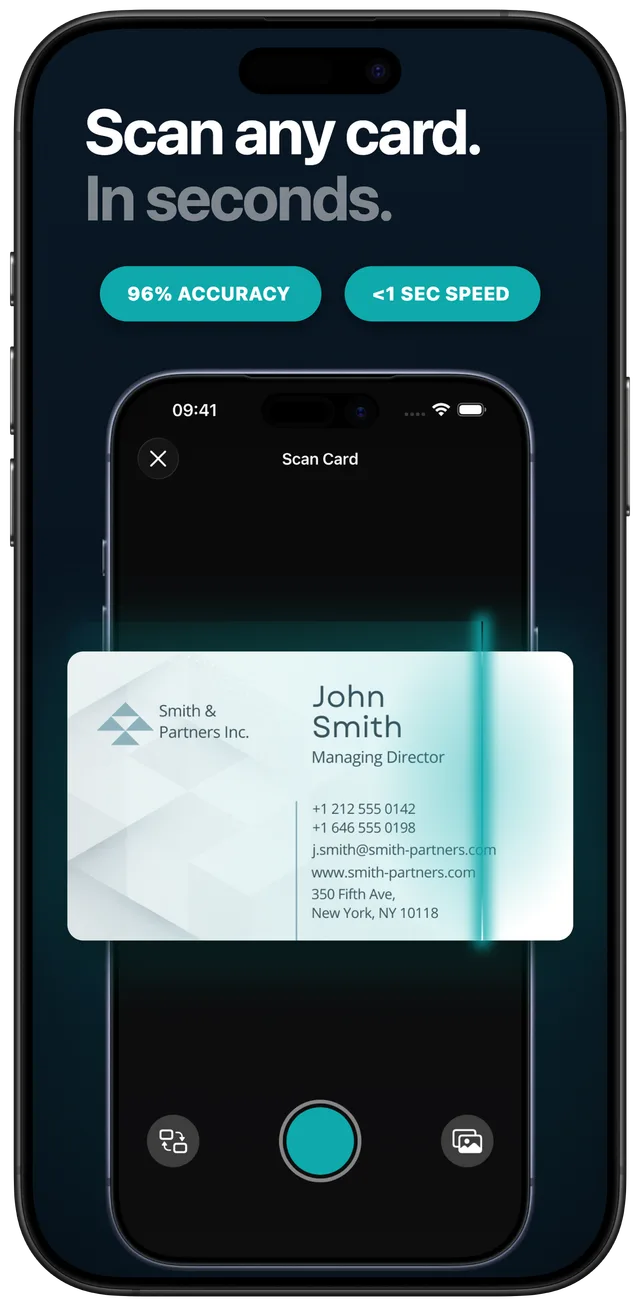
Point your camera and Scard reads the card on-device in under a second — no internet, no upload, 96% accuracy
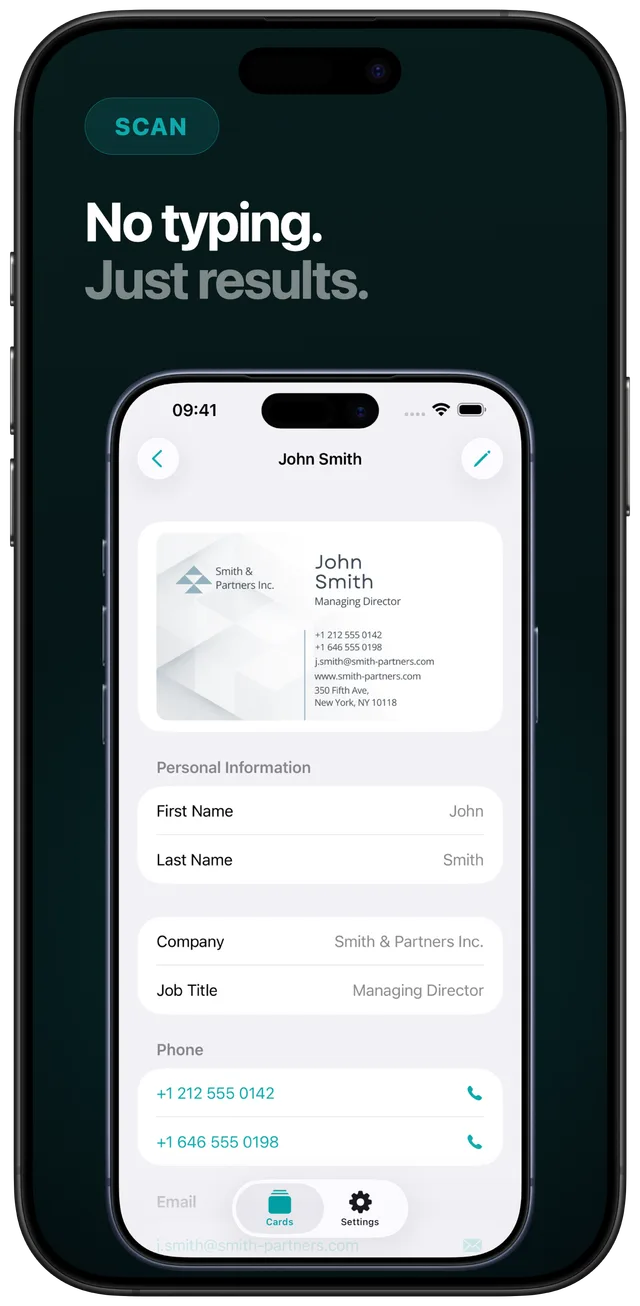
No typing. Every field — name, title, company, phone, email, website, address — extracted automatically in one pass
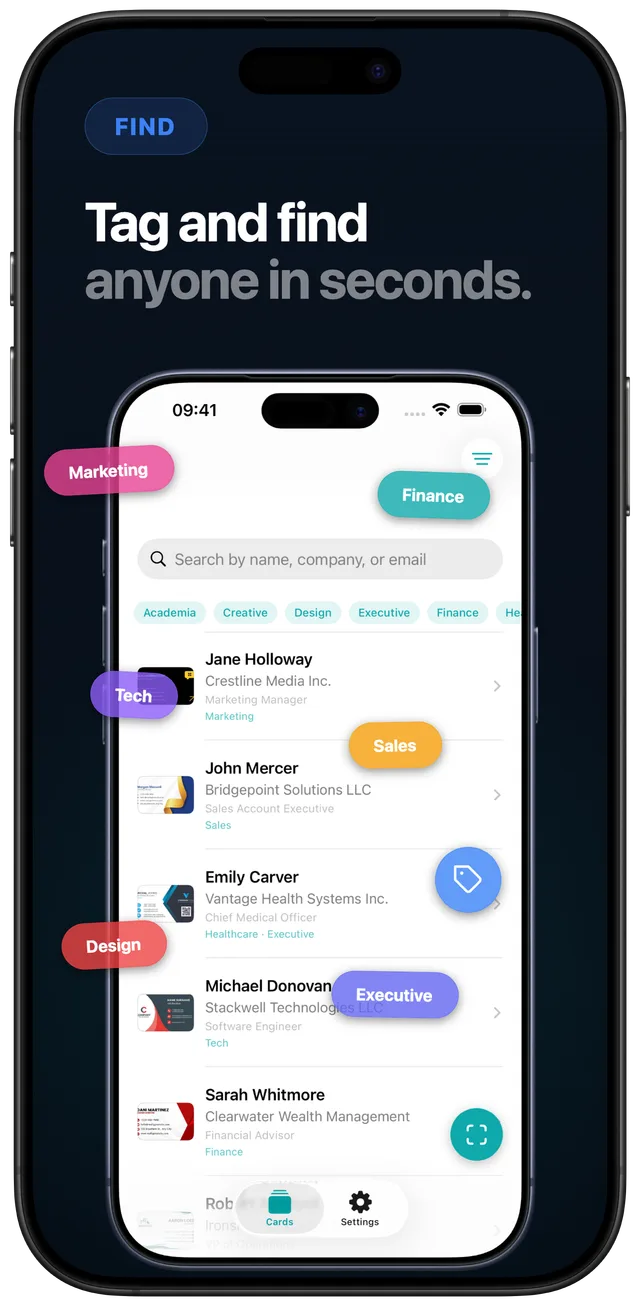
Tag by event or industry as you scan, then find anyone instantly by tag, name, or company
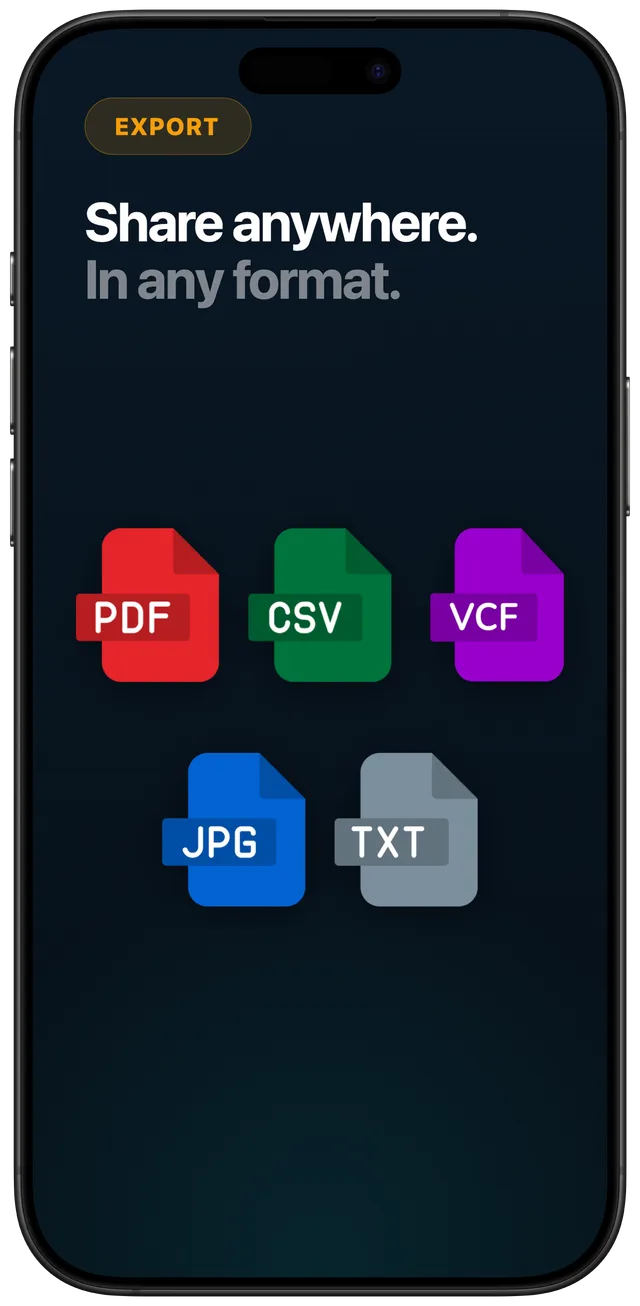
Export to CSV for Excel, vCard for Contacts and Outlook, PDF to share — in the format your workflow needs
Open Scard and hold the business card inside the frame. Auto edge detection squares it up, or tap the photo icon to import a card you already photographed.
Apple Vision OCR runs on your device and pulls out the name, title, company, phone, fax, email, website, and address — no internet needed. When you're online, optional AI parsing improves accuracy.
Review the fields, then save straight to your iPhone Contacts with one tap. Add a tag — like the event name or industry — so you can find the card later.
When it's time to move contacts into a spreadsheet, Outlook, or a CRM, export your cards as CSV, vCard, or plain text. Everything syncs privately across your Apple devices via iCloud.
Practical, no-nonsense guides for turning scanned cards into contacts, spreadsheets, and CRM records — the honest way.
Camera to auto-extracted fields to one-tap save — plus batch-scanning tips for a whole stack of cards.
Read guideBatch-scan cards, export a CSV, and open it in Excel or Google Sheets — a private alternative to online converters.
Read guideTag cards by event or industry, search instantly, and run a 24-hour follow-up routine after networking.
Read guideA neutral privacy checklist — offline OCR, no forced account, data location, export freedom, tags, and field coverage.
Read guideExport a vCard or CSV from Scard, then import it into Outlook or any CRM — the honest, portable-file way.
Read guideOpen Scard, point your camera at the card, and on-device OCR extracts the name, title, company, phone, fax, email, website, and address. Review the fields and tap Save to add the person to your iPhone Contacts — no typing, no account. Learn more
Yes. Scard exports your cards as a CSV file that opens directly in Excel and Google Sheets, with each contact as a row and every field in its own column. You can also export vCard or plain text. Learn more
Add custom tags by event or industry as you scan, then search or filter by tag, name, or company across your whole collection — even from Spotlight on your home screen. A quick 24-hour follow-up routine turns cards into contacts. Learn more
Yes. OCR runs on-device with Apple Vision, so card images aren't sent to third-party servers. Your collection syncs only through your own private iCloud, there's no account, and your data is never sold or shared. Learn more
Yes, through export. Scard doesn't integrate directly with Outlook or CRMs, but it exports a vCard or CSV that you import using their own tools — Outlook's People → Import, or your CRM's import wizard with column mapping. Learn more
In a single pass, Scard extracts the full name, job title, company name, phone numbers, fax, email addresses, website, and postal address from a business card.
Yes. Scanning uses Apple Vision OCR directly on your device, so it works with no internet connection. When you're online, optional AI-powered field parsing can improve accuracy, but it isn't required.
No. There's no account and no sign-up — download and start scanning immediately. Your card collection syncs privately across your Apple devices through your own iCloud. Requires iOS 17 or later on iPhone and iPad.
Stop transcribing business cards by hand. Scard reads every field on-device, saves to your iPhone Contacts with one tap, and exports to CSV or vCard when you need it — no account, private by design. Free to download on the App Store.